
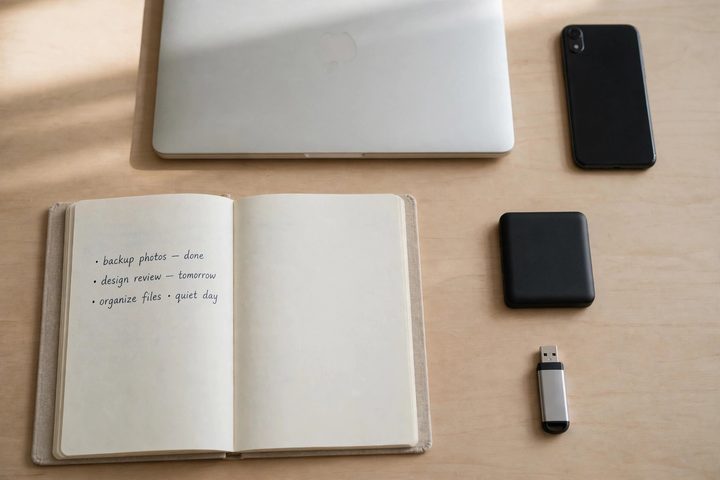
A digital declutter goes wrong in one common way: someone spends an hour deleting in a burst of energy, loses a photo or a password they needed, and stops trusting the process. The plan below avoids that by keeping the order fixed. You sort first, delete second, and every session has a stopping point so you can leave it half done without leaving a mess.
It fits into one weekend, with four sessions of roughly 60 to 90 minutes. You need no technical skills, only the phone, computer and email account you already use.
Key Takeaways:
- Back up first, then sort everything into Keep, Maybe, or Go.
- Clear the phone on Saturday morning and the inbox on Saturday afternoon.
- Sort files and cloud storage on Sunday morning, then cancel unused subscriptions that afternoon.
- Keep it clear with short weekly, monthly, and quarterly habits.
Table of Contents
Why a digital mess feels heavier than it looks
A cluttered drawer sits closed until you open it. A cluttered phone is in front of you many times a day. Each red notification badge, each unread count and each screen of apps you never open puts a small decision in your path: deal with this now, or ignore it again.
Files add a different cost. When documents are scattered across the desktop, the downloads folder, an email attachment and a cloud account, finding one takes searching, and you can’t be sure you have the latest version. Time goes to looking rather than doing.
None of this is dramatic on its own, which is why it builds up. The aim of a digital declutter is to cut the number of open decisions and to put the things you need where you will look first. Deleting is only one tool for that, and often the smaller one.
Before you delete anything: set up three piles and a safety backup
Do this part first, even if you are tempted to skip to the satisfying bit. It takes about 30 minutes and it is what makes the rest safe.
Make a safety backup
Before any bulk deleting, make sure the things you cannot replace exist in a second place. That usually means photos, important documents and anything tied to work or money. Use whichever of these you already have:
Your phone’s built-in cloud backup, checked to confirm it has run recently
An external hard drive or a USB stick for documents
A cloud storage account that holds a copy of your photos
Open the backup and look at it. Confirm that a recent photo is there and that a document you know you saved is there. A backup you have never checked is only a hope.
Set up three piles
Every item you touch this weekend goes into one of three piles. You will use these words for apps, emails, files and subscriptions alike.
Keep: you use it, or you need it for a clear reason such as taxes, health, a warranty or a memory you care about.
Maybe: you are unsure. This pile prevents the stalling that makes decluttering tiresome, because you never have to decide on the spot.
Go: you are sure you do not need it.
For the phone, a pile can be a folder or a screen. For files, it can be three folders on your desktop named Keep, Maybe and Go. For email, it can be labels. Nothing in Go gets deleted until the end of the session, and nothing in Maybe gets decided until the weekend is over. Then you give Maybe one quick pass, and anything you still cannot justify moves to Go.
Saturday morning: clear your phone’s apps, photos and notifications
Start with the phone because you will notice the improvement every time you pick it up. Work in this order: notifications, apps, then photos. Notifications go first because they cost you attention all day, and changing them takes the least effort.
Notifications (about 20 minutes)
Open your phone’s notification settings and go through the list of apps. For each one, ask whether you need to be interrupted by it. Messages from people, calendar reminders and banking alerts usually pass. Shopping offers, game prompts, social media likes and news alerts you did not choose usually do not.
Turn those off rather than deleting the apps for now. Switching off notifications is reversible, and you will see within a day or two how much quieter the phone is.
Apps (about 30 minutes)
Scroll through every screen and every folder, and sort each app into Keep, Maybe or Go. A useful test is whether you opened it in the last few months and whether you would miss it. Duplicates are easy wins: two weather apps, three photo editors, several flashlight or scanner apps.
Many phones can show apps ordered by when they were last used, or by the storage they take. Check your settings for a storage or battery section, because the list there often shows which apps you have forgotten about. Move the Keep apps you use daily onto your first screen and leave the rest in a folder or the app library.
Delete the Go pile at the end of this block. Leave the Maybe pile for Sunday evening.
Photos (about 30 minutes)
Photos are the largest and most emotional part of a phone, so keep the goal small. Do not try to sort years of pictures. Instead, remove the obvious waste:
Screenshots you have already used
Near-duplicate shots from a burst
Blurry or accidental photos
Photos of receipts, parking spots or whiteboards you no longer need
Many phones have an album for screenshots and another for duplicates, which makes this faster. Remember that deleted photos usually sit in a recently deleted album for a limited time before they are gone, and your safety backup covers the rest.
Stopping point: when the timer for photos ends, stop, even if thousands remain. The next session starts with email.
Saturday afternoon: get your inbox to a manageable place
An inbox of thousands of messages cannot be cleared one by one, and you do not need to. The goal for this session is an inbox you can read, not an inbox at zero.
Start with the bulk
Search your inbox for the senders that appear most often. Newsletters, store promotions and automatic notifications usually account for most of the volume. For each sender you no longer read, use the unsubscribe link in one of their messages. Then select all the messages from that sender and move them to Go.
Work through the largest senders first. Ten minutes on the top fifteen senders will often remove more clutter than an hour of opening individual emails.
Handle the old mail in one move
For messages older than a certain date, say six months, create a label or folder called Archive and move everything older than that cutoff into it. Archiving keeps those messages searchable but takes them out of your daily view. This is safer than mass deleting, because an old email with a confirmation number or an address in it is still findable.
Keep a short list of folders
Create only the folders you will actually use, such as Receipts, Travel, Health and Work. Three to six is plenty. Searching does most of the work in a modern inbox, so elaborate folder trees are rarely worth the upkeep.
Stopping point: end the session when the inbox contains only recent mail you can scan in a few minutes. Anything that needs a reply or action can be starred, and you can answer those when you next sit down to email. Do not reply to old messages today.
Sunday morning: sort files and cloud storage into a structure you’ll keep
Files take longer than the phone or inbox because they require decisions about what things are. The way to keep it manageable is a simple structure and a rule that you build it before you move things into it.
Build a short folder structure
Create a top-level folder for each broad area of your life that produces documents. A typical set looks like this:
Home and Money (taxes, insurance, bank statements, warranties)
Work or Business
Health
Family and Photos
Projects (anything with an end date)
Use plain names and no more than two levels of folders inside each. If you have to think about where a file belongs, the structure is too detailed.
Gather, then sort
Start with the places files collect by accident: the desktop, the downloads folder and any cloud drive you have not opened in a while. Put everything from the desktop and downloads into a single temporary folder called Sort. Then work through it, using the three piles. Files that clearly belong in your new structure go there. Obvious junk, such as installers you already used and duplicate downloads, goes to Go.
For file names, a consistent pattern helps future you: put the date first in a year-month-day format, then a few words that describe the file. A name like “2026-03-insurance-renewal” will sort correctly and be easy to recognise.
Check your cloud storage
If you use more than one cloud service, decide which one holds what. Having two or three that each contain half of your documents is a common reason files feel scattered. Pick one as the main home for documents and move or copy things over rather than keeping duplicates in several places.
Check that the safety backup from Saturday still covers the files you have just reorganised. If you moved them, the backup may need to run again.
Stopping point: when the Sort folder is empty or the timer ends, stop. If Sort still has files in it, leave the folder where it is and finish it next weekend. Everything outside that folder is already in its place.
Sunday afternoon: cancel the subscriptions and accounts you no longer use
Subscriptions are the one part of this plan that saves money as well as attention, so it is worth doing carefully. Do it last because by now you know what you actually use.
Find them all
Check these places for recurring charges:
Your bank and credit card statements for the last few months
Your phone’s subscription list in its settings
Your email, by searching for words like “receipt”, “renewal” and “subscription”
Any payment service you have linked, such as a digital wallet
Write each one down with what it is for and how often it charges. Put each in Keep, Maybe or Go, using the same test as before: have you used it recently, and would you replace it if it disappeared?
Cancel in the right order
Cancel the clear Go items first. Read the cancellation page carefully, because some services keep access until the end of the paid period and others stop immediately. Save a screenshot or the confirmation email, so you can show you cancelled if you are charged again.
For Maybe items, set a calendar reminder a few weeks ahead to ask whether you used the service. If you did not, cancel then.
Close the accounts you no longer use
Free accounts with no charge can stay without harm, but old accounts that hold personal details are worth closing. Start with the ones you recognise as unused, such as an old shopping site or a forum. Look in the account settings for a delete or close option. Before you delete one, download anything you want from it.
Finish by giving the Maybe pile from the phone one final pass. If you still cannot say why you need an app, delete it. You can always reinstall it.
Stopping point: stop when your subscription list is written down and the clear cancellations are done. Reminders cover the rest.
Small habits that keep the clutter from coming back
A weekend clears the backlog. Keeping it clear takes a few small routines, each of which takes only minutes.
Once a week, spend ten minutes on the Sort folder and the downloads folder. Move files to where they belong or delete them.
Unsubscribe the moment a newsletter stops being useful. It takes one click while the message is open and far longer in bulk later.
Check the screenshots album monthly. Screenshots pile up fast and rarely need to be kept.
Ask before installing an app. If a task is a one-off, using the web browser avoids another icon to manage.
Review subscriptions every quarter. A repeating calendar entry is enough. Compare the list against what you used.
Name files properly the first time you save them. A clear name and the right folder cost seconds when you save and minutes when you search.
Pick two of these to start rather than all six. A habit you keep is worth more than a perfect system you drop after a week, and once the first two are automatic, add another.
A digital declutter is never entirely finished, because new files, emails and apps arrive every day. But with a backup in place, a structure you understand and a short routine, the pile stays small enough that you can see what is in it.